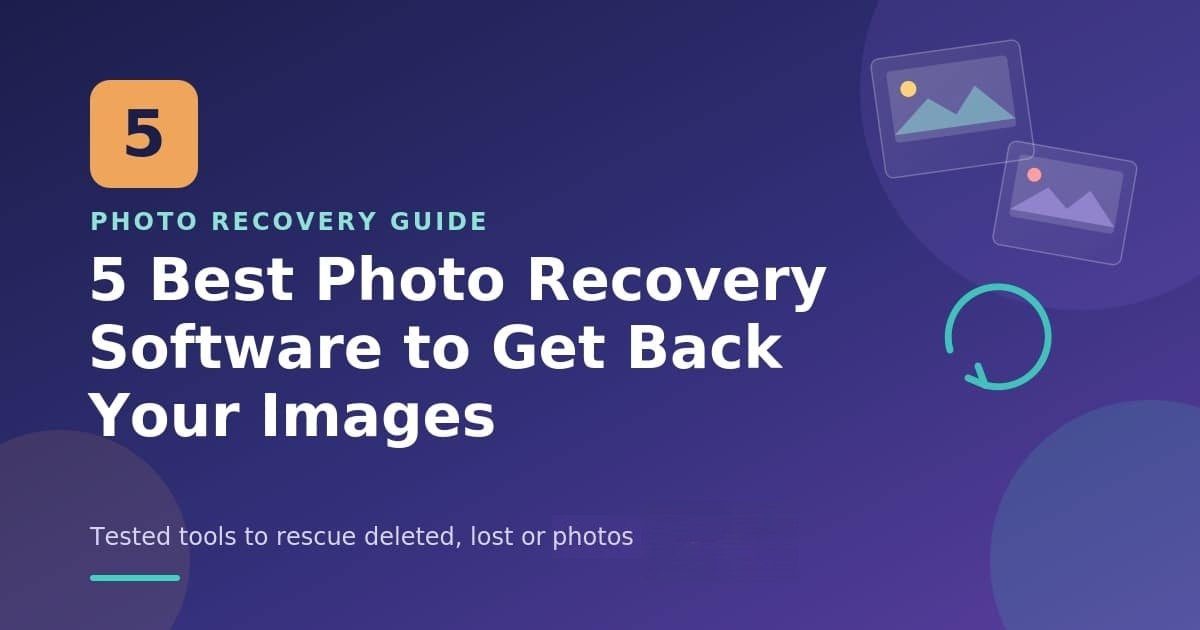

If you shoot on your iPhone a lot, sooner or later, you’re going to hit that storage wall. Doesn’t matter if you’re snapping portraits, reels, or sunsets at golden hour, or even if you’ve got the 512GB model. Sooner or later, your phone’s going to tap out.
That’s exactly why we decided to share a few tips we personally use all the time when things get tight. Whether you’re in the middle of a shoot or prepping for one, here’s how to free up space on your iPhone without losing the photos that matter most.
In this article:
Where Your iPhone Storage Is Going
Before we jump into Tip #1, here’s what we’ll call Tip #0.
If you’re anything like us, your iPhone isn’t just your camera. It’s your studio, inbox, editing bay, backup drive, social media command center… and yeah, maybe your late-night YouTube binge buddy too. So chances are, it’s not only photos and videos filling up your storage.
So before you start deleting your shots, it’s worth stepping back and getting the full picture. Head to Settings > General > iPhone Storage and let it load.
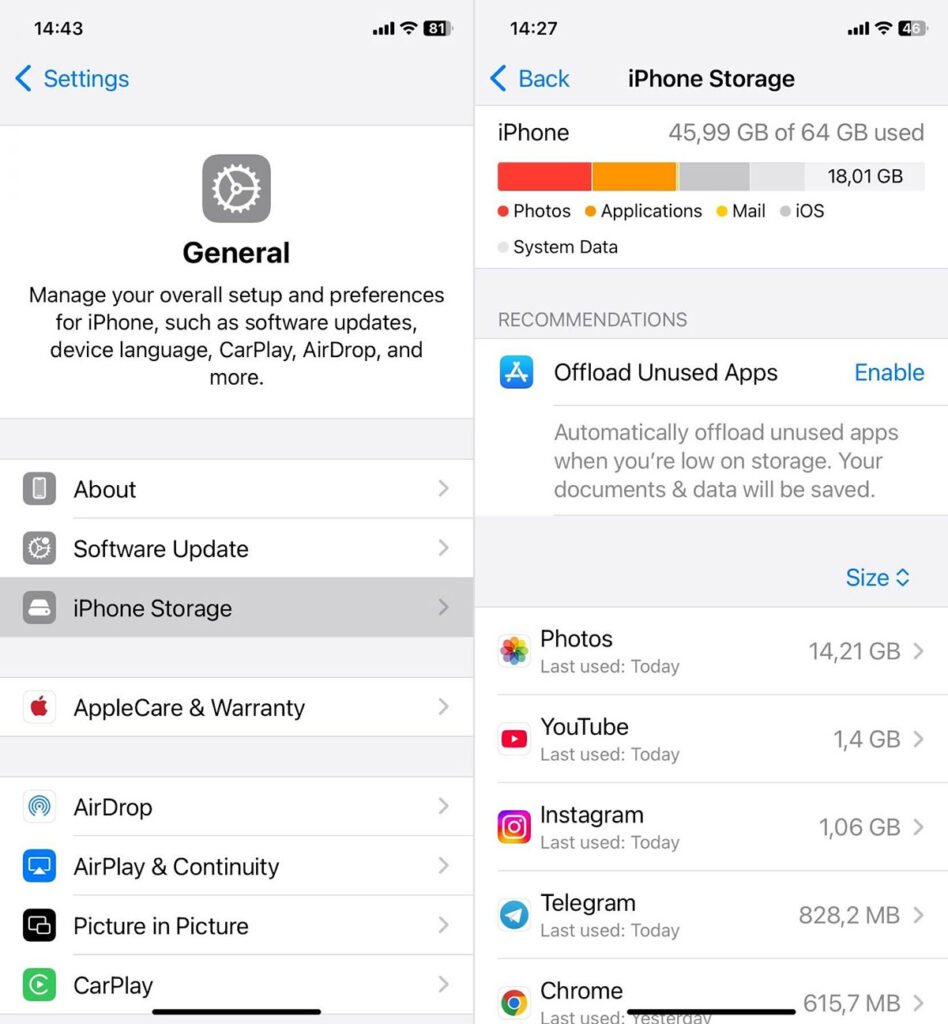
You’ll get a detailed breakdown of what’s taking up room: Applications, Media, System Data, the whole works. It’s not always pretty, but it’s incredibly useful. Screenshot it if you want to track progress as you go.
While you’re in the Storage section, your iPhone might also suggest ways to free up space (yep, it’s smart like that). If you see a Recommendations section:
- Tap Show All to view everything your device suggests.
- Read through each tip. Tap Enable to turn it on, or tap the recommendation itself to review what can be removed.
4 Quick Tips on How to Free Up Storage on iPhone
Alright, now that we’ve cleared the air (and maybe a few gigabytes), let’s get into the good stuff. There are many ways to free up iPhone space, but we’re starting with the quickest and easiest trick you can pull off in under a minute.
Tip 1: Use a Cleaner App to Tidy Up Your Photo Library
All our photo libraries look different, but the problems inside them? Pretty much the same. We’re talking duplicates, near-identical shots from the same photo session, massive forgotten video files, screenshots you don’t even remember taking… you get the idea.
We won’t suggest cleaning it all by hand. You already know how painful that is. Instead, do what we always do – use an app.
There are tons of photo cleanup tools on the App Store, but two that we’ve had great success with are Remo Duplicate Photos Remover and Clever Cleaner. Both are completely free to download and use.
Clever Cleaner is especially worth checking out. It uses AI to group similar photos, flag duplicates, and even pick out the best shot in each group for you, saving time and space without the guesswork.
Here’s how to use it:
- Download Clever Cleaner for iPhone on App Store.
- Open the app and tap the “Similars” tab. This is where the app groups your near-identical shots together.
- At the bottom, tap “Smart Cleanup.” The app scans your entire photo library in seconds and starts marking what it thinks you can safely delete. The app’s AI automatically picks the best photo to keep in each group.
- Don’t agree with the picks? Tap “Restore” to remove it from the deletion list.
- If you approve the AI’s selections, Slide to delete all marked photos.
- If you prefer more control, tap on a group to compare photos yourself. You can choose a different “Best shot” if you don’t agree with the AI’s selection.
- Tap “Move to Trash” to delete the unwanted ones or “Skip All” to keep the group unchanged.
- Once you’ve reviewed everything, scroll to the bottom and tap “Empty Trash.” That officially clears out all the photos Clever Cleaner flagged.
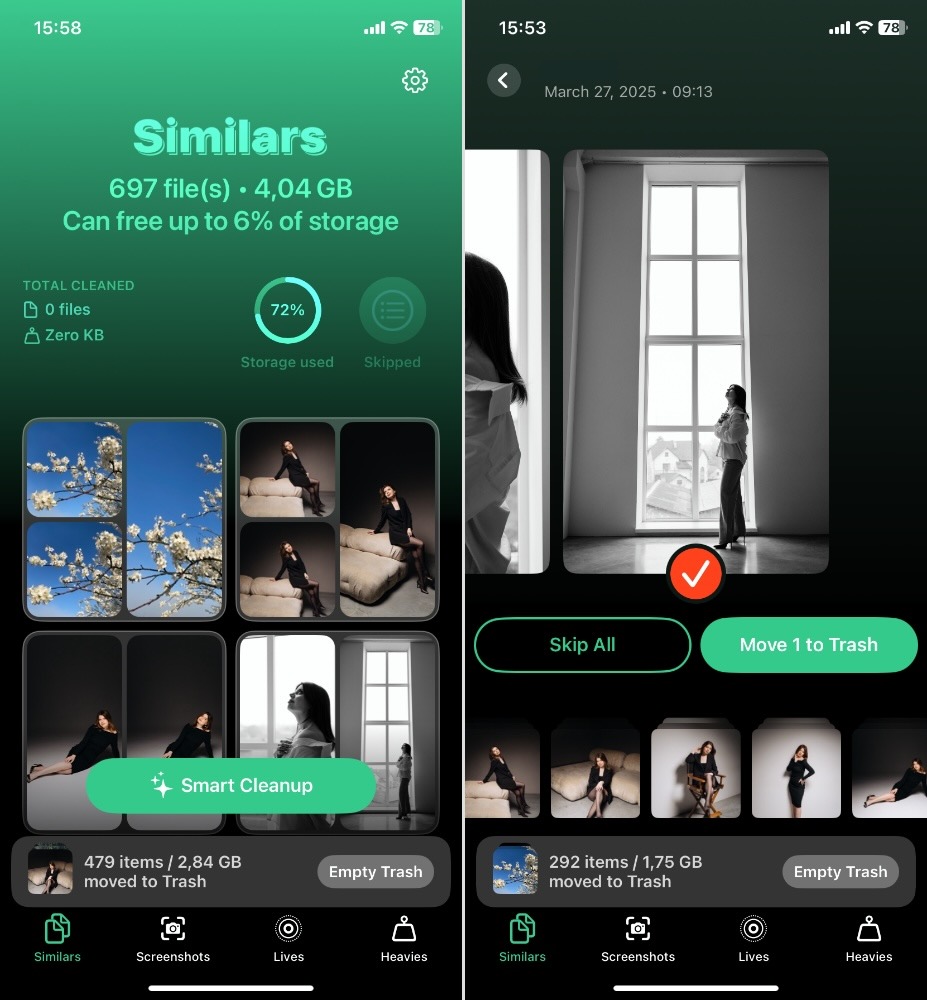
Clever Cleaner also comes with a few extra tools that are surprisingly useful:
- There’s Screenshots, which lets you bulk-delete every screenshot you’ve ever taken.
- Then there’s Lives. If you shoot Live Photos (and let’s be honest, most of us do by accident), this one’s a gem. It converts your Live shots into regular stills by removing the little video clip that comes attached. Same photo, way less space.
- And don’t sleep on Heavies. Since the Photos app still can’t sort by file size (why, Apple?), this tab is a gem. It shows you your largest files (usually videos) and lets you quickly decide what’s worth keeping. You’d be amazed how many random 4K clips are sitting in your library doing nothing but hogging space.
Just don’t forget: after using any of these tools, your deleted items go to the Recently Deleted album in the Photos app. If you want the space back now, open Photos > Albums > Recently Deleted, and clear them out manually.
Video Guide
Tip 2: Offload Photos to the Cloud or External Drive
This tip is perfect for anyone who doesn’t want to delete any of their photos, but still needs their iPhone to breathe a little. If you’re the type who shoots in ProRAW, saves everything in full resolution, or just can’t bring yourself to delete anything “because maybe you’ll use it later,” then this one’s for you.
Offloading your media to the cloud or an external drive gives you space without sacrifice. You keep your files, but store them somewhere else. It’s like moving clutter out of your studio and into storage; you can still access it, but it’s not in your way.
Start with the built-in option:
- Go to Settings > iCloud and turn on iCloud Photos.
- Then make sure Optimize iPhone Storage is selected.

This tells your phone to keep smaller previews of your photos while offloading the full-res versions to the cloud. You won’t even notice they’re gone unless you’re offline and try to zoom way in.
Prefer non-Apple solutions? Google Photos is an excellent cloud option, especially if you’re already using Google services.
Want to skip the cloud entirely? Grab a Lightning or USB-C flash drive (or use your Mac) and transfer the files manually. There are apps and external SSDs made just for this kind of backup, especially useful when you’re traveling without stable Wi-Fi.
But let’s be honest: this approach isn’t perfect.
iCloud storage fills up fast (those 5 free gigs vanish in no time), and upgrading to iCloud+ means a monthly subscription. And if you’re using an external drive, you’ll need to remember to actually plug it in once in a while. Plus, none of these options are ideal if you need fast offline access to every file.
Still, for working photographers juggling thousands of files, this is one of the cleanest ways to free up space without deleting your work.
Tip 3: Delete App Caches & Downloaded Media
This tip is especially useful for content creators who edit on their phones, preview reels in apps, or download media to share or repost later. These apps cache everything to make them feel fast, but they rarely clean up after themselves.
Here’s how to deal with it:
- First, head to Settings > General > iPhone Storage.
- Give it a second to load. Scroll through the list of apps and tap on the ones you use heavily.
- You’ll see two numbers: App Size and Documents & Data. If that second one is massive, you’ve found a culprit.
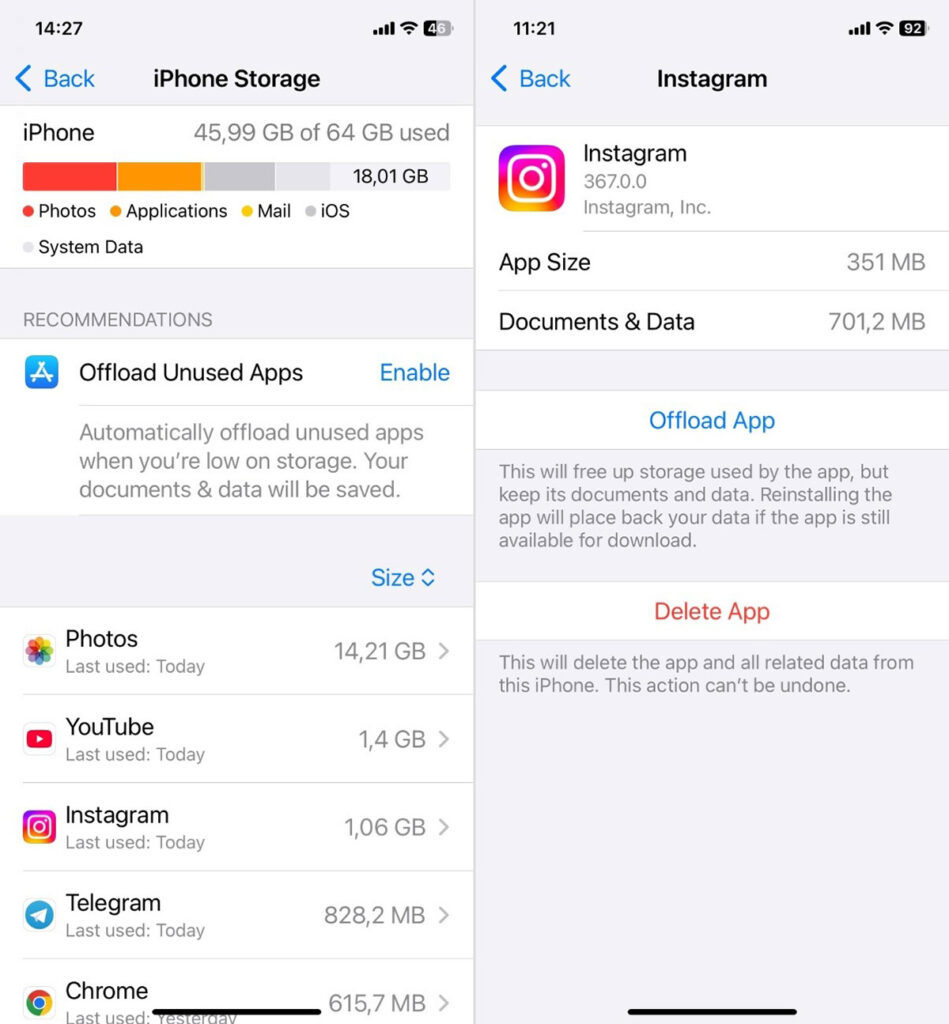
Some apps (like Instagram or TikTok) don’t give you a clear “Clear Cache” button, but you can delete and reinstall them. It sounds drastic, but it works, and you won’t lose your account or saved drafts, as long as you’re logged into the cloud.
Now check your Files app too. Open it and go to Downloads or any folders where you’ve saved media manually, especially if you use Airdrop a lot. You might find old client files, large ZIPs, or random videos you forgot existed. If they’re backed up or no longer needed, delete away.
And don’t skip apps like Spotify, YouTube, and Netflix. If you’ve downloaded playlists, videos, or full episodes, those can eat up gigabytes fast. Open each app, check the downloads section, and clear out anything you’re done with.
Tip 4: Compress Videos
Here’s another creative way to clear out space – compress your files, especially videos. This one’s kind of underrated. Most of us don’t think twice about how massive our video files are, especially if you’re shooting in 4K or using cinematic mode on the regular. And if you’ve been googling how to get rid of storage on iPhone without losing anything important, this might be your new favorite trick.
Instead of deleting them altogether, you can shrink them down. Compression lets you keep the video and reclaim the storage. Think of it as putting your videos on a diet.
To start:
- Download a video compression app like Compress Videos & Resize Video, Video Compressor – ShrinkVid, or use ShutterEncoder if you’re offloading to a desktop.
- Open the app.
- Select the videos you want to slim down, and pick your settings. Dropping from 4K to 1080p or trimming the bitrate can dramatically reduce file size while still keeping things crisp.
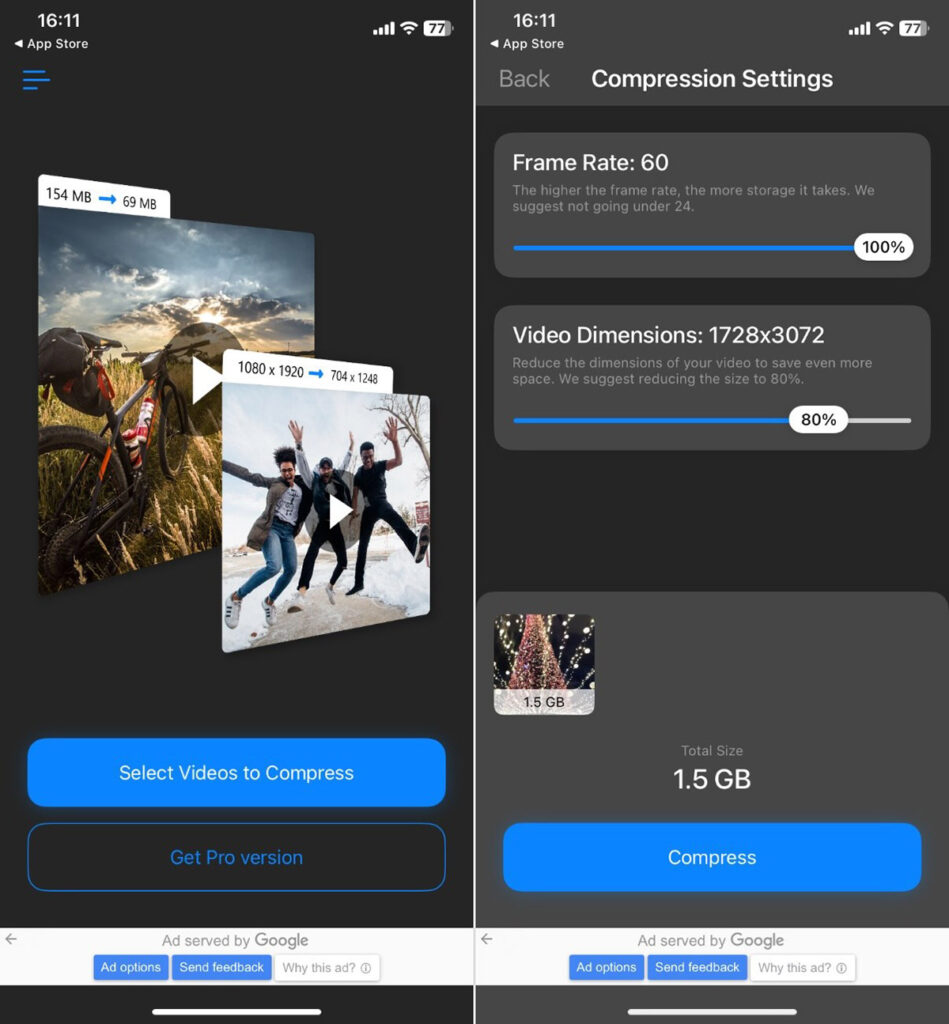
Most apps give you a preview, so you can check quality before you delete the original. If everything looks good, go ahead and remove the uncompressed version. (Pro tip: do this in batches to save time, and double-check that you’re not keeping two versions of the same file.)
And if you’re prepping videos for social media? Compressing before you edit or upload can speed up your entire workflow. Fewer crashes, faster exports.
Wrapping It Up
Now you know how to clear space on an iPhone. And fast. But before you go back to shooting, we wanted to leave you with a few smart habits that’ll help you stay ready for the next shoot, not scramble for storage when it counts.
So next time you’re out capturing something beautiful, keep these settings in mind:
- Lower your video resolution if you don’t need full 4K. 1080p still looks great, and honestly, most people scrolling on their phone screens won’t notice a difference, but your storage definitely will. People still argue about this all over Reddit, but unless you’re shooting for a big screen or serious post-production, 1080p gets the job done without eating up your space.
- Turn off Live Photos unless the motion really matters. It adds a mini-video to every shot. Neat, but also heavy.
- Switch to HEIF/HEVC formats, if, for some reason, you haven’t already. These give you the same image or video quality as JPEG/MP4 but take up way less space.
- Shoot straight to Lightroom or another cloud-connected app. It keeps your files organized and off your local storage from the start.
Bottom line: keep it light, keep it intentional, and keep your phone as ready as your camera. Your storage bar will appreciate it.
Now go capture something colorful.